Side list
Bookings, seated guests and the waitlist next to the map: tabs, sub-tabs, what's on a card and how to use it.
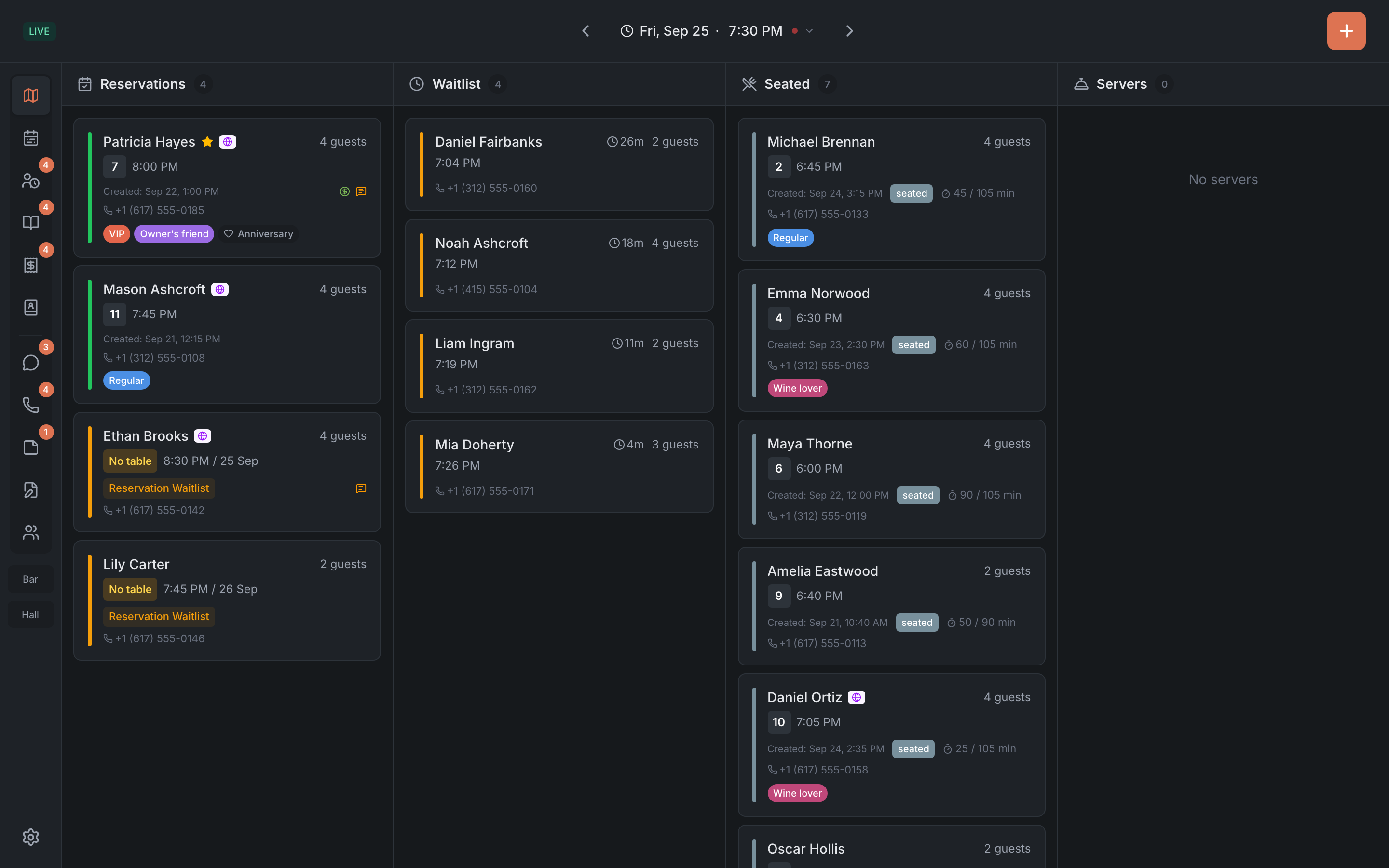
To the right of the map, a list is always open — the shift’s bookings, seated guests and the waitlist. A host looks at it as often as at the room itself: the map shows which tables are taken, the list shows who is coming, who is seated and who is waiting.
It’s the same panel that cards open in. Pick a table or a booking and a card takes the list’s place; close it with the cross and the list comes back.
Tabs
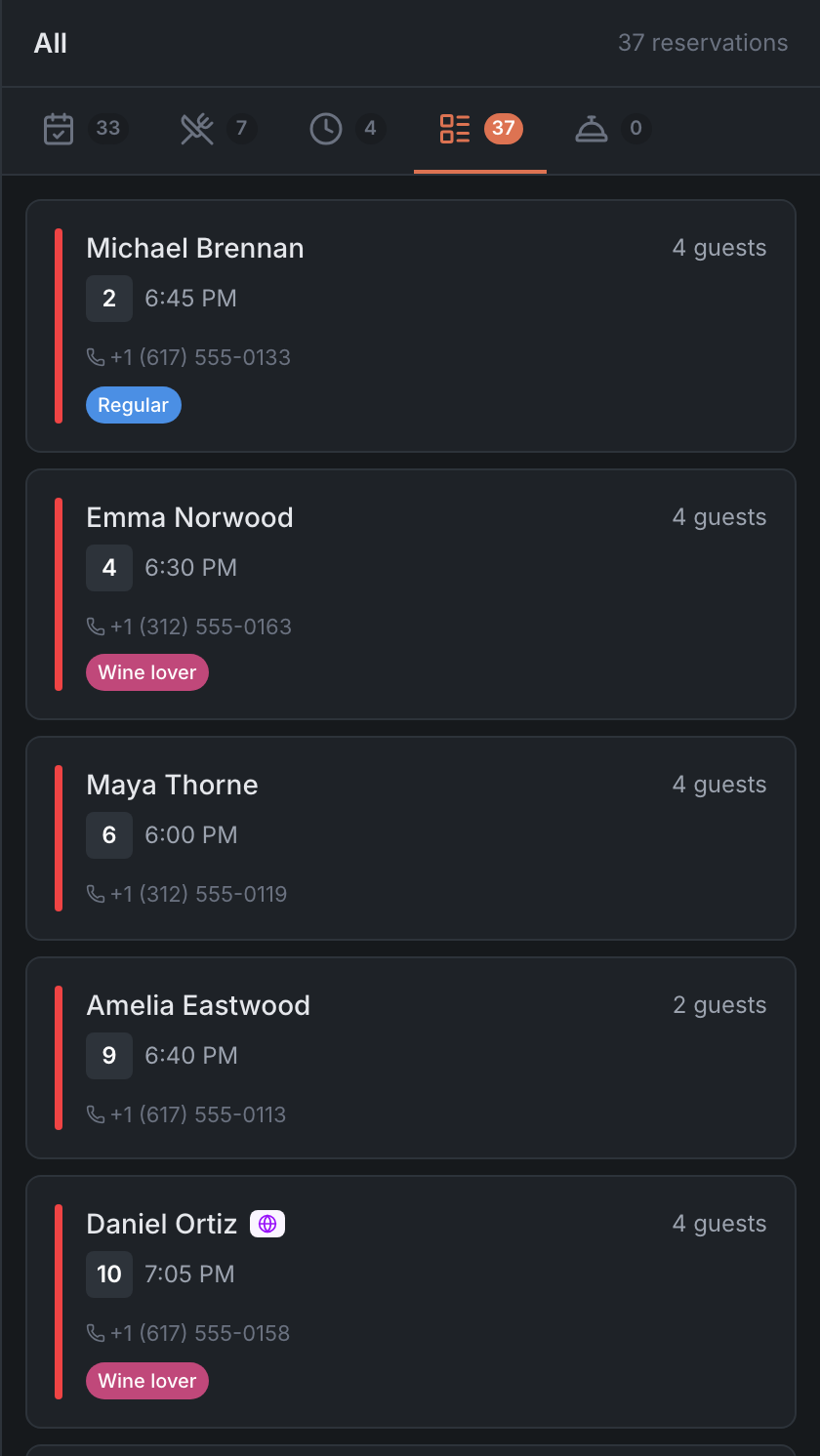
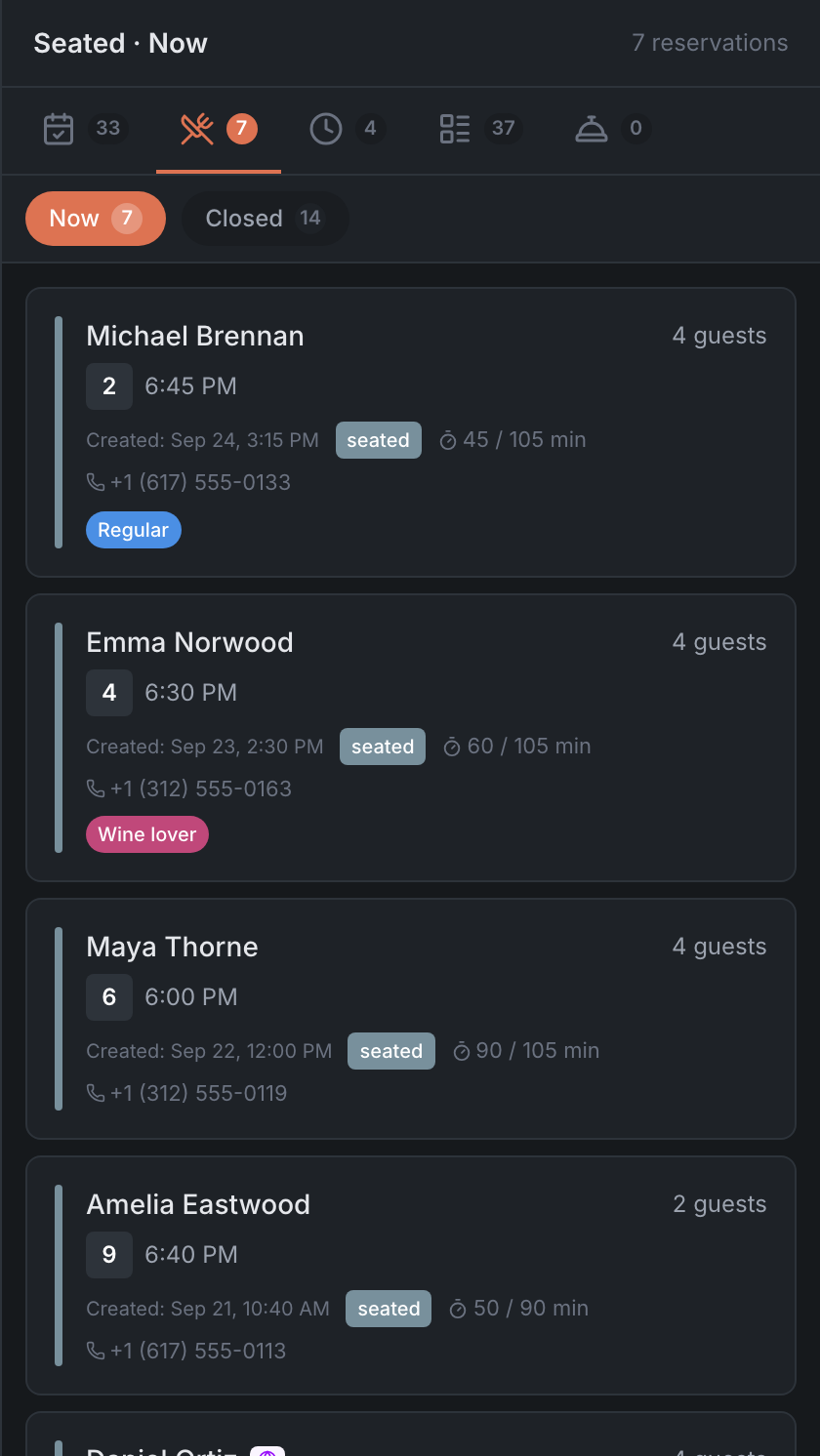
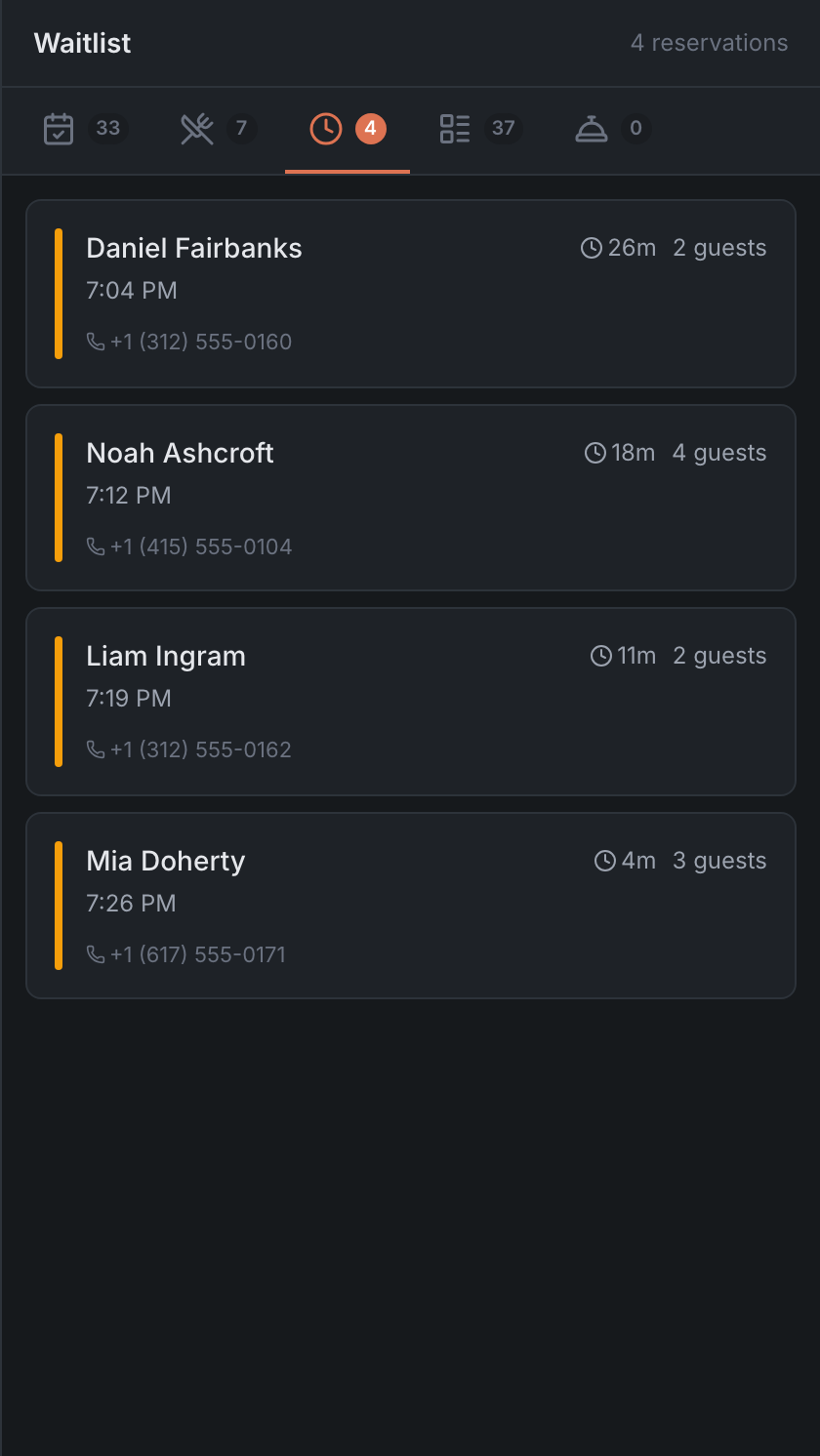
At the top of the list are five tabs with icons and numbers:
| Tab | What’s in it | What the number counts |
|---|---|---|
| Reservations | bookings for the selected shift | the shift’s bookings plus requests for other days |
| Seated | guests who are seated | who is seated right now |
| Waitlist | walk-in guests waiting for a table | those waiting |
| All | the shift’s bookings and the waitlist together | everyone together |
| Servers | the restaurant’s servers | how many servers |
Above the cards are the name of the open tab and how many entries it has.
Reservations sub-tabs
Under the Reservations tab is a row of sub-tabs, each with its own number:
| Sub-tab | What’s in it |
|---|---|
| All | all bookings and requests |
| Confirmed | bookings waiting for their guests |
| Requests | bookings waiting for your decision |
| New online | online bookings nobody has opened yet |
| Waitlist | reservation-waitlist requests |
| By event | bookings for events |
| Closed | finished, canceled and no-shows |
New online, Waitlist and By event appear only when they have something in them.
On the All and Requests sub-tabs for the current shift, the line under the title reads This shift plus requests for later days: besides today’s bookings, it shows requests waiting for a decision for other days. If you’ve moved to another day, it reads Shift … only.
Seated sub-tabs
- Now — who is seated at this minute.
- Closed — seatings that have already finished this shift: both from bookings and walk-ins.
What’s on a card
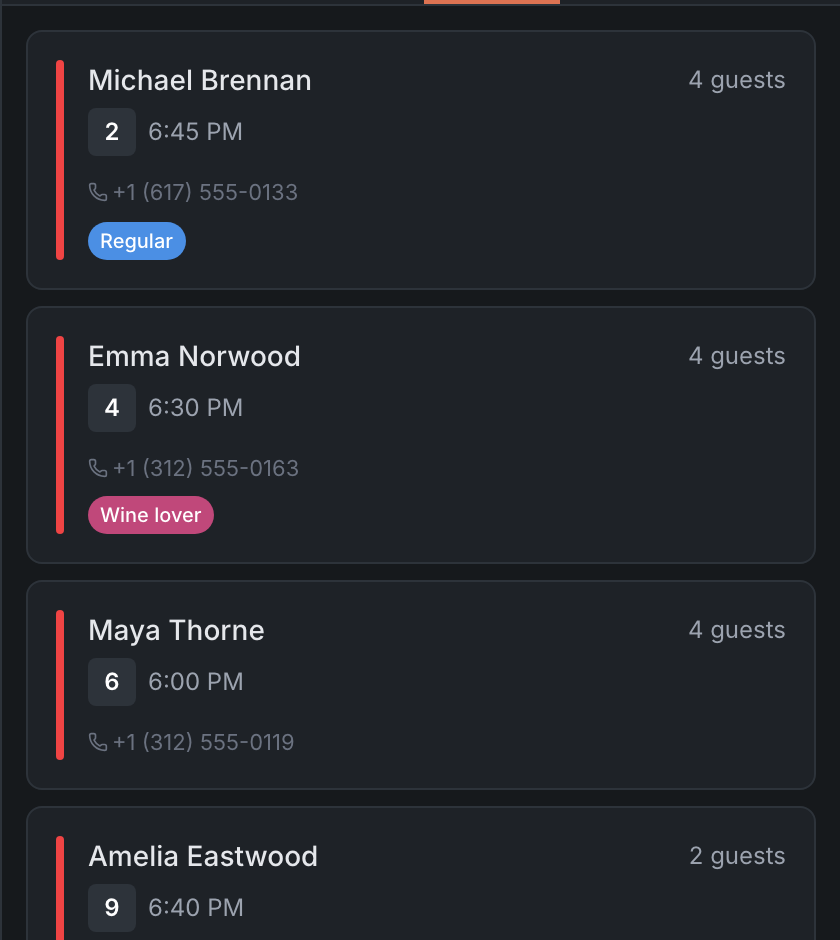
A card in the list is a short summary of a booking or a guest. It shows:
- the guest’s name, with a VIP star for regulars;
- the booking time and party size;
- the table number — or a No table badge if no table has been assigned yet;
- where the booking came from: a globe icon for bookings from the website and the widget, or a partner service’s icon. Hover over it with a mouse to see the name;
- event or occasion icons, if they’re set — the name is in the tooltip too;
- Late — the guest is confirmed, but the booking time has already passed;
- the pre-seating status — for example, Called or Checked in;
- a timer for seated guests, for example “45 / 90 min”: how much of the planned time has passed. When the time is up, it turns red;
- for the waitlist — how long the guest has been waiting;
- a deposit coin, whose color shows whether the deposit is paid;
- the guest’s phone, comments, tags and allergies.
On the left of a card is a colored stripe showing the booking status. The status name isn’t on the card — you’ll see it in the booking card.
What to do with a card
- Tap it — the full booking card, or the waitlist guest’s card, opens with all the details and action buttons.
- Drag it onto a table on the map — to assign a table to a booking that has none, or to seat the guest straight away. Which options the panel offers is covered in Moving and combining tables. A waitlist guest is called to the table right away, with no options.
On the Servers tab, instead of bookings there’s the list of the restaurant’s servers; the ”+” button in its header adds a new one.
How to set up the list for yourself
In the panel settings, in the Side list: reservation tabs section, you can:
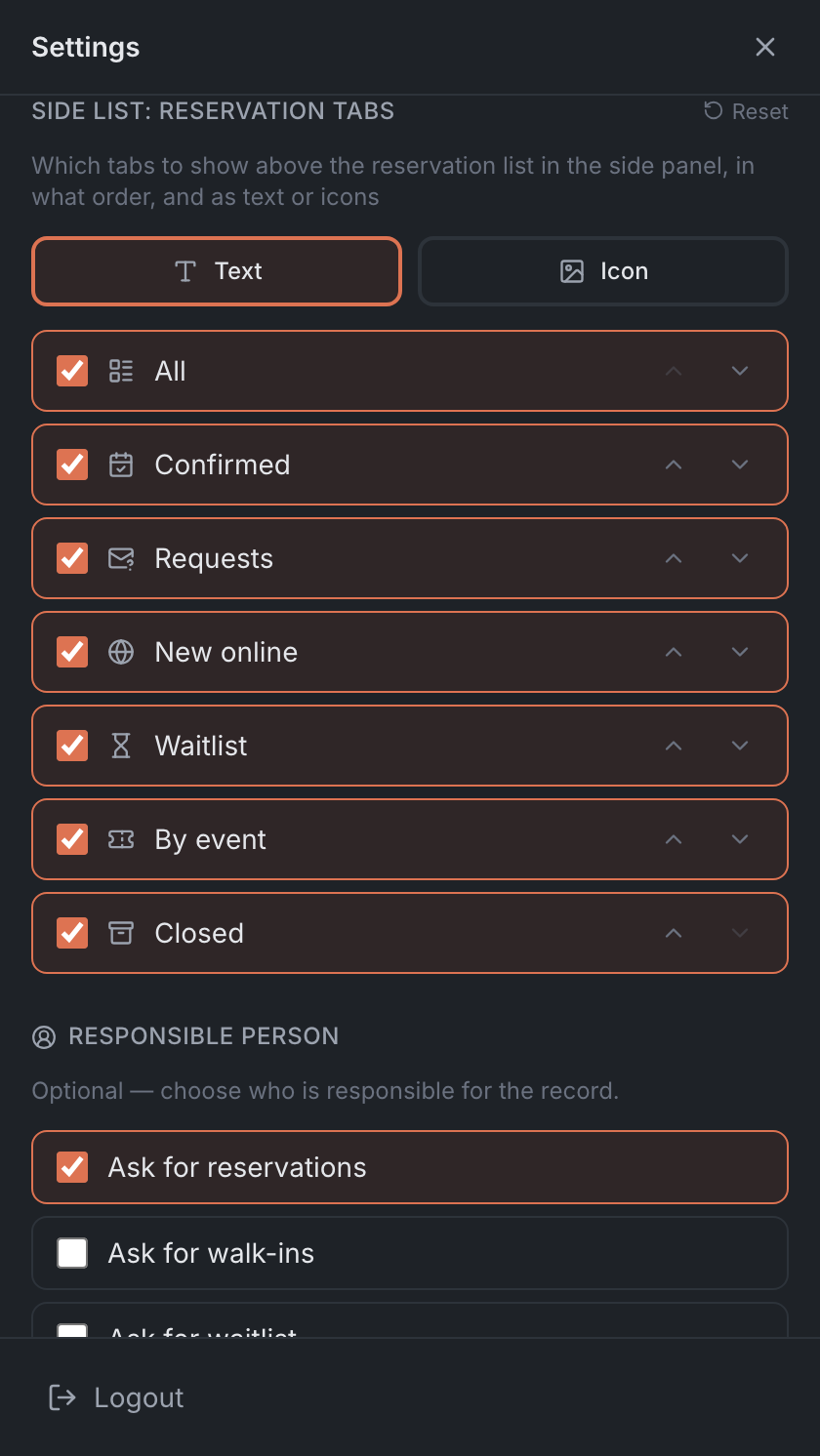
- show the sub-tabs as Text or Icon;
- hide the sub-tabs you don’t use — at least one has to stay;
- change their order, and bring back the original one with Reset.
In Data only mode
If the Data only mode is on for the Map tab, the same lists stand side by side as four columns instead of the map: Reservations, Waitlist, Seated and Servers. That’s handy on a large screen at the entrance, where the floor plan isn’t needed. The mode is switched in the panel settings — see Floor map.